

Managing incoming leads across your team just got easier. With Lead Routing in Top Producer X, you can automatically distribute new leads among your team members, helping ensure every opportunity reaches the right agent for timely follow-up.
Choose how leads are assigned: distribute them evenly across your team with Round Robin, or route leads to specific agents based on where they come from.
Here’s how to set it up and make it work for your team.
Note: Lead Routing is available for Top Producer accounts with team members. Only the team lead (responsible agent) can manage these settings. Lead Routing is turned off by default.
Turn on Lead Routing
- In Top Producer X, click Settings in the left navigation menu.
- Select Lead Routing.
- Turn on the Enable Lead Routing? toggle.
- Choose your preferred routing method:
- Route leads using round robin: Automatically distribute incoming leads among selected team members.
- Route leads by Source: Assign leads to team members based on their source.
Round Robin is selected by default when you first enable Lead Routing.
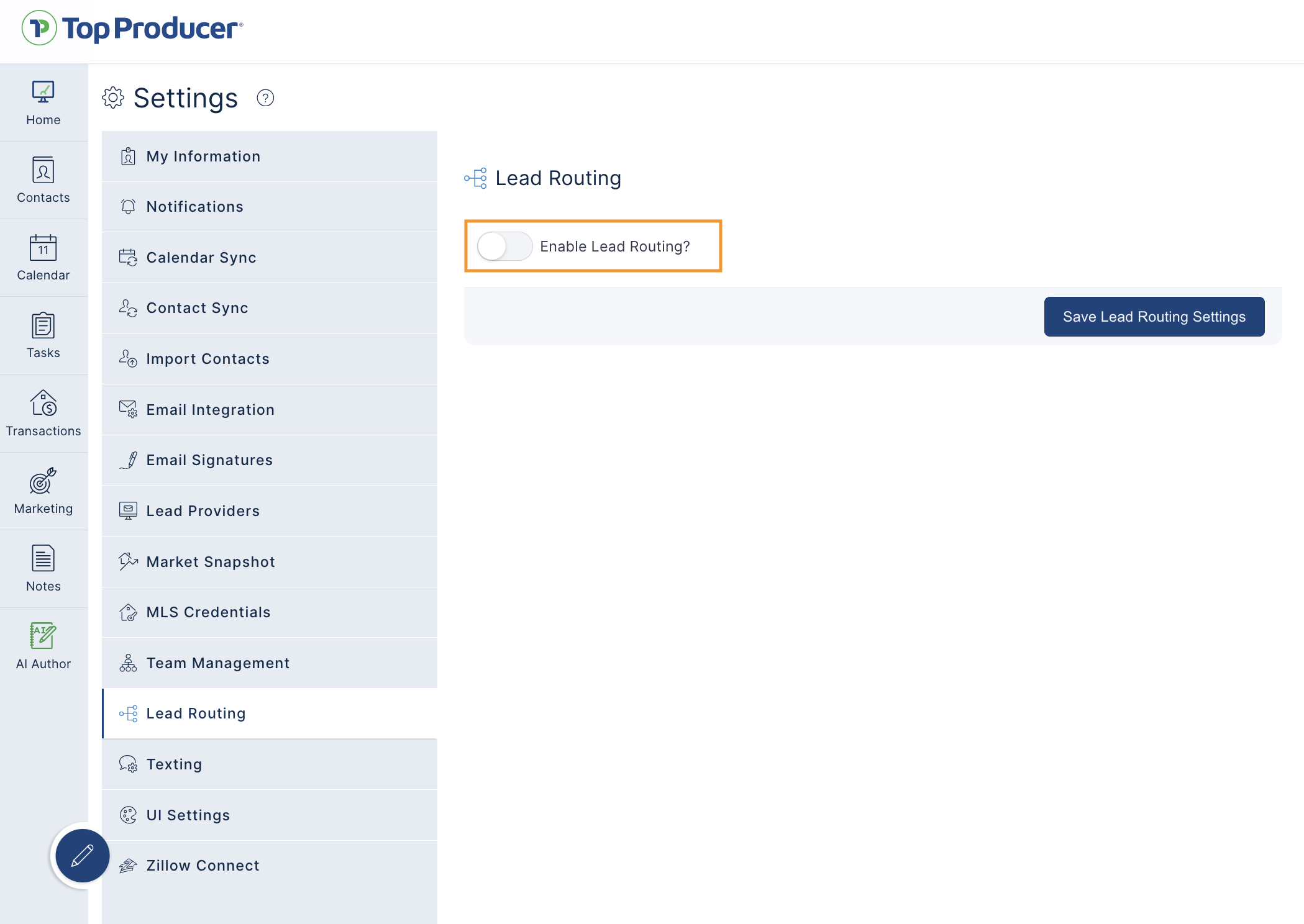
Option 1: Route Leads Using Round Robin
Round Robin helps you distribute new leads fairly among your team members without manually assigning each one.
To set up Round Robin routing:
- Select Route leads using round robin.
- Under Team Members, find the agents you want to include in the lead rotation.
- Check the Route Leads box next to each participating agent.
- Click Save Lead Routing Settings.
That’s it! New incoming leads will automatically be distributed among your selected team members.
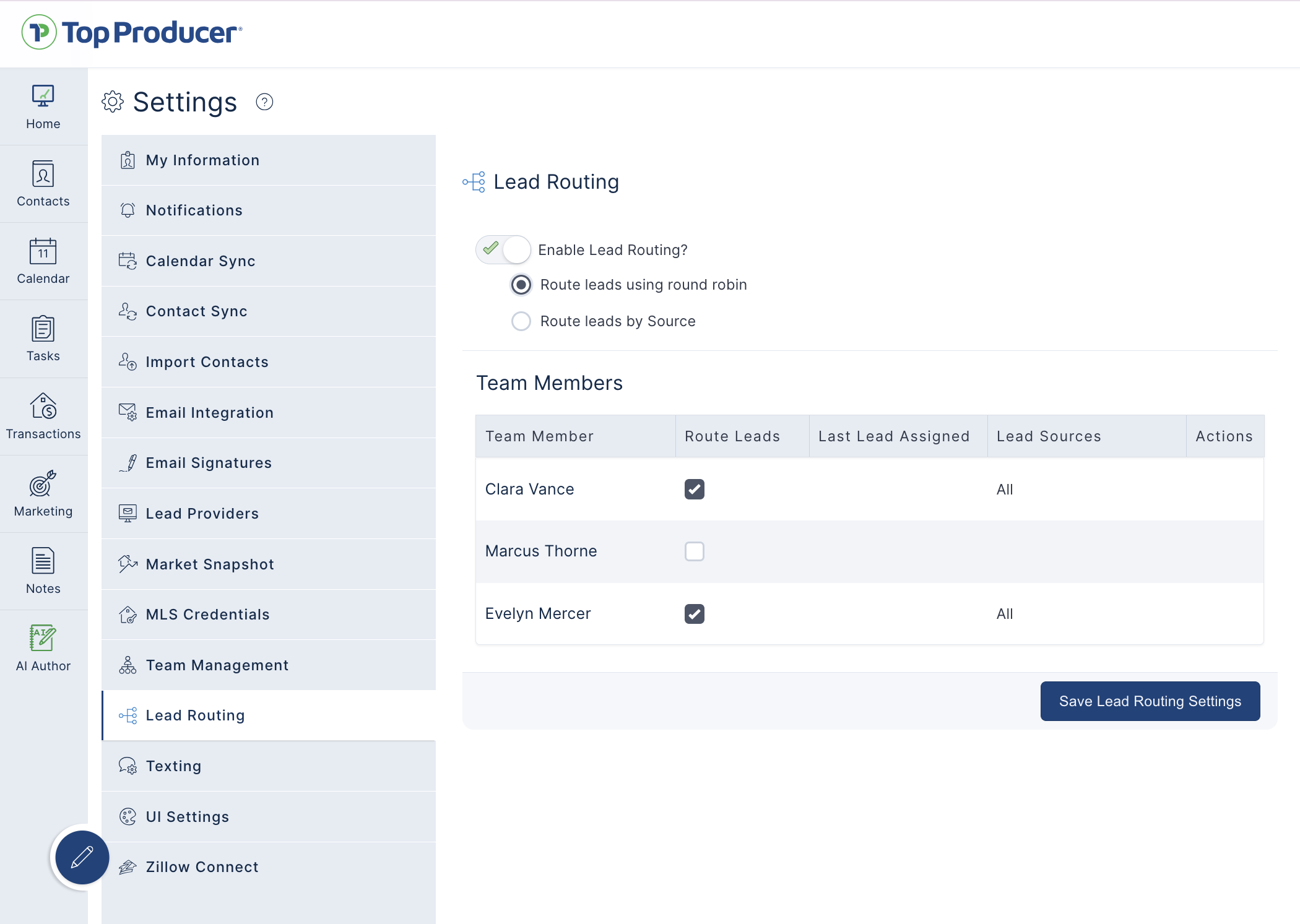
How it works: Top Producer assigns each new lead to the participating agent who has gone the longest without receiving a lead. The Last Lead Assigned field is updated after each assignment to keep the rotation balanced. If two agents have the same priority, alphabetical order determines who receives the lead first.
Tip: Want to temporarily stop sending leads to a particular agent? Uncheck their Route Leads box and save your settings. You can add them back to the rotation whenever they’re ready.
Option 2: Route Leads by Source
Want more control over who receives certain types of leads? Source-based routing lets you direct leads from specific channels to the agents best suited to work them.
For example, you might assign Social Connect leads to agents focused on online lead conversion while directing Zillow leads to another team member.
To set up source-based routing:
- Select Route leads by Source.
- Under Route Leads from, check the lead sources you want to include in automatic routing. Available sources depend on your account and may include Social Connect, Zillow, HouseValues, your website, and other lead providers.
- Under Team Members, check Route Leads for the agents who should receive leads.
- Click the Edit (pencil) icon next to an agent’s name.
- Select the lead sources you want that agent to receive, then save your changes in the Edit window.
- Repeat for any additional agents.
- Click Save Lead Routing Settings on the main page to activate your routing rules.
Important: Saving changes in an agent’s Edit window doesn’t activate them yet. You must also click Save Lead Routing Settings on the main page.
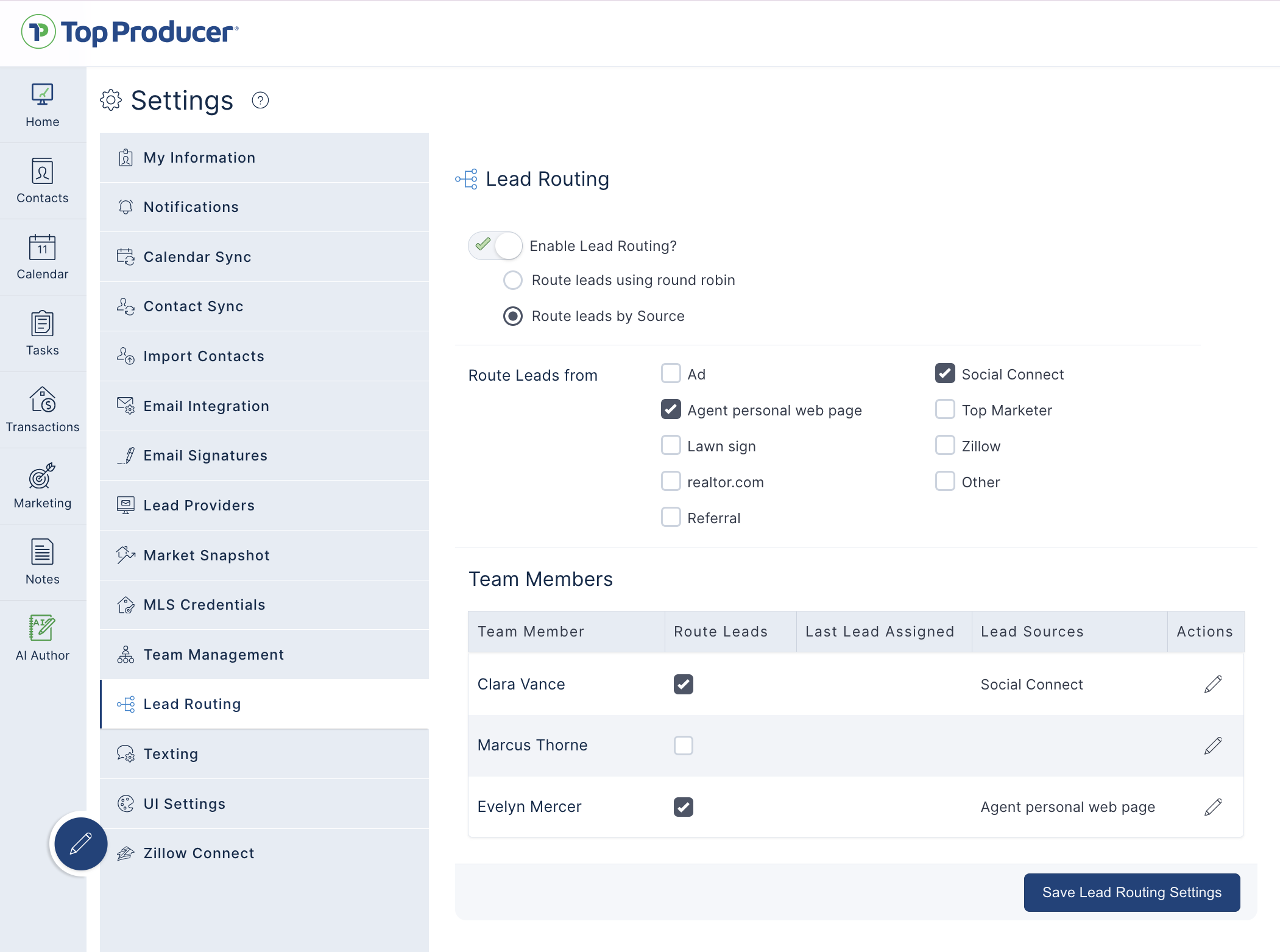
How source-based assignments work
- One source, multiple agents: You can assign the same lead source to multiple team members. When a new lead arrives, Top Producer uses Round Robin to distribute it among the eligible agents assigned to that source.
- One agent, multiple sources: An agent can receive leads from several different sources.
- No matching agent: If no eligible agent is assigned to a lead’s source, the lead stays with the team lead.
- Custom lead sources: You can use the Other option to add a custom source. Once saved, that source becomes available in your account’s Source list.
Tip: You can temporarily remove an agent from routing by unchecking Route Leads without losing their source assignments. When you enable routing for that agent again, their previous source selections are restored.
What Happens After a Lead Is Routed?
Once Lead Routing is enabled and your settings are saved, Top Producer handles new lead assignments automatically.
Here’s what to expect:
- The assigned agent becomes the contact owner. The lead appears under that team member’s ownership rather than the team lead’s.
- Notifications go to the assigned agent. New lead email and text alerts are directed to the agent receiving the lead.
- Follow-up activities stay connected. Lead Response Plans, Market Snapshot activity, notes, and other lead-related workflows follow the assigned team member.
- Only new leads are routed. Existing contacts aren’t automatically reassigned, and duplicate leads continue to follow the existing duplicate-handling process.
- Leads sent directly to individual agents aren’t affected. Lead Routing only applies to eligible incoming leads received by the team lead.
Note: Some lead products, such as HouseValues, may require the receiving agent to have an eligible subscription. If no qualified agent is available, the lead remains with the team lead.
Managing Your Lead Routing Settings
You can update your team’s routing preferences anytime under Settings → Lead Routing.
You can change your routing method, add or remove agents from the rotation, or update which sources each agent receives.
A few things to keep in mind:
- Newly added team members aren’t automatically included in lead routing. You’ll need to enable routing for them.
- Assistants aren’t eligible to receive automatically routed leads.
- You can still manually reassign contacts as needed.
- To turn off automatic routing entirely, switch off Enable Lead Routing? and click Save Lead Routing Settings. New leads received by the team lead will continue to be assigned to the team lead as before.
With Lead Routing set up, your team can spend less time managing assignments and more time connecting with new prospects and turning opportunities into clients.
Need help with your settings? Contact Customer Care at support@topproducer.com.