

Upgrade to Top Producer® X CRM for your favorite Top Producer® 8i CRM features and much, much more!
Here are some of the changes you’ll notice in Top Producer® X CRM. This is not an exhaustive list, but rather just a snapshot of some of the changes:
| In Top Producer® 8i CRM… | In Top Producer® X CRM… |
| …there are multiple contact views, including Contact Summary, Sales Pipeline, and Search Results. | …there is a single Contacts view, combining the summary, search, and Sales Pipeline views. |
| …you can email contacts. | …you can email and text contacts. |
| …setting up and sending Market Snapshot® Reports requires logging in to a separate control panel. | …setup and send Market Snapshot® Reports conveniently from within Top Producer® X CRM. |
| …no Contact Sync duplicate checking. | …built-in Contact Sync duplicate checking. |
| …separate page to search for contacts. | …search for contacts from every page. |
| …lists of activities are called Action Plans. | …lists of activities are called Task Plans. |
| …to schedule autosend emails use Email Activities. | …to schedule autosend emails use Email Tasks. |
| …email groups of contacts with Mass Email. | …email groups of contacts with Group Email. |
| …transactions are separated into listing and closing records. | …listings and closings are combined as transaction records. |
Upgrading is quick and easy. Start by setting up Top Producer® X CRM, then get acquainted with the new workflows for your contacts, tasks, and transactions.
Setting Up Top Producer® X CRM
To get started, log in at https://crm.topproducer.com, or click the TPX button in the Top Producer® 8i CRM main menu.
All your contacts and tasks are available immediately, no setup or import required. To get the most out of your upgrade to Top Producer® X CRM, we suggest you set up texting, add your MLS credentials, and enable Contact Sync.
Texting
Go to Settings > Texting and connect your mobile phone number. Don’t forget to reply CONFIRM to the confirmation text message. Once set up you can send text messages from any contact record and see the full texting history.
MLS Credentials
Go to Settings > MLS Credentials and add your MLS credentials to connect to your MLS. Connecting your MLS is essential for sending Market Snapshot® Reports, importing properties, and creating transactions.
Contact Sync
Contact Sync in Top Producer® X CRM features built-in duplicate checking, giving you peace of mind when syncing your iCloud, Microsoft, or Google contacts.
To get started, go to Settings > Contact Sync and follow the prompts to connect your account.
If you don’t see Contact Sync on the Settings page, and have previously set up Contact Sync or Calendar Sync in Top Producer® 8i CRM, you’ll need to disable that integration first:
- Log in to Top Producer® 8i CRM.
- Go to Settings > Integrations > Edit Settings.
- Click Remove (Google/Outlook) Account.
Once disabled, log out and back in to Top Producer® X CRM and the Contact Sync tab will appear under Settings.
You’re Done!
When upgrading from Top Producer® 8i CRM, this is all you need to do to hit the ground running.
Your Contacts
When you manage your client relationships in Top Producer® X CRM, you’ll enjoy a 360° contact view that includes social media insights and a complete communication history. That way you’ll know with just a quick glance what they’re interested in and the last time you talked. And with the ability to send an email, text or Market Snapshot® report from within their record, meaningful connections are just a click away.
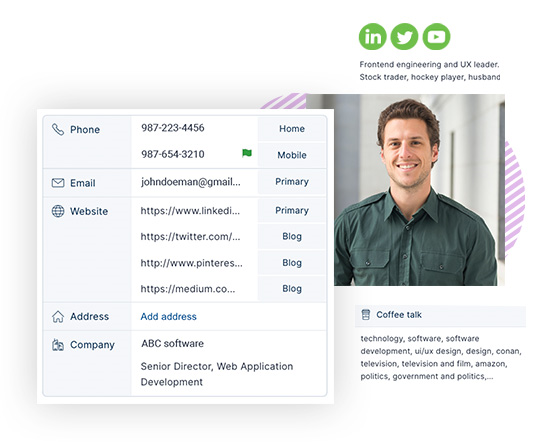
Here’s a look at finding, categorizing and communicating with your contacts in 8i vs X.
Viewing Contacts
The Contacts page has all the information you need, the contact records have been redesigned with a modern look, conveniently page through your records and find recent contacts.
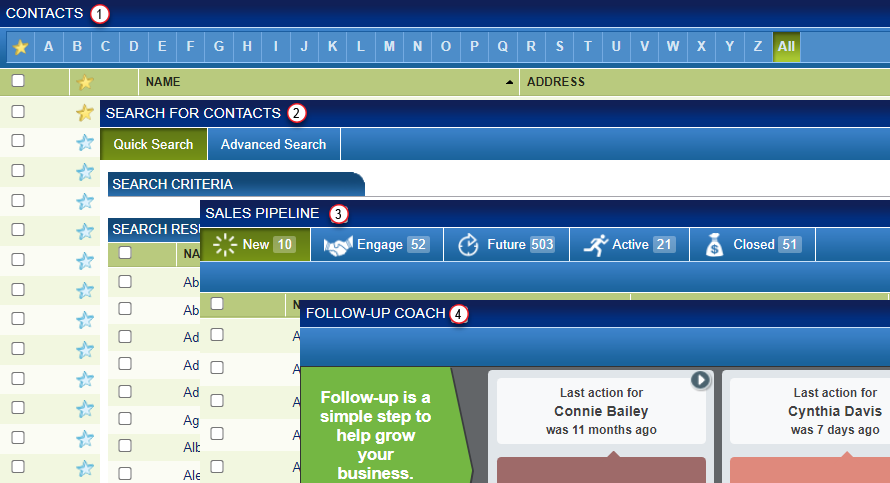
In Top Producer® 8i CRM...To view your contacts you had to navigate to the Contacts Summary to browse (1), the Search page for lookups (2), the Sales Pipeline to view contacts by status (3), and the Follow-up Coach on the dashboard for coaching (4).
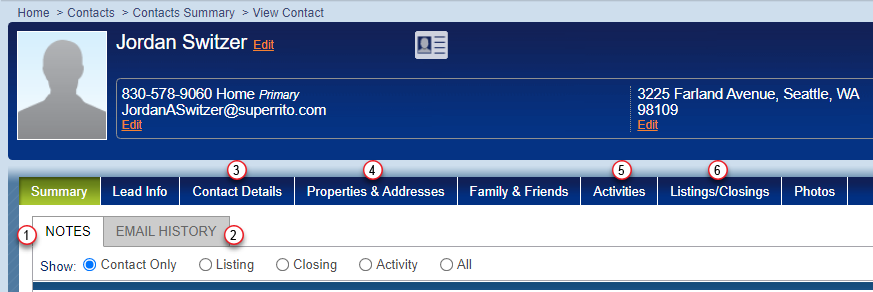
Opening a contact record, you could access notes (1), email history (2), contact details (3), properties (4), activities (5), and listings/closings (6).
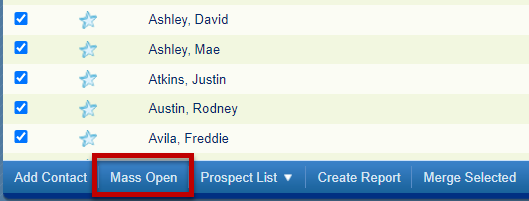
To page through contact records, you would need to select the desired contacts and click Mass Open.
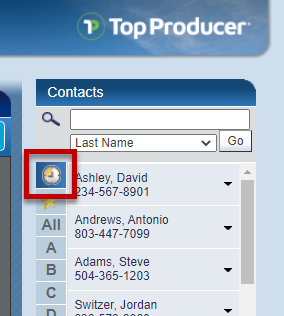
Recently viewed contacts could only be found on the dashboard under the Recently Viewed tab of the contact rolodex.
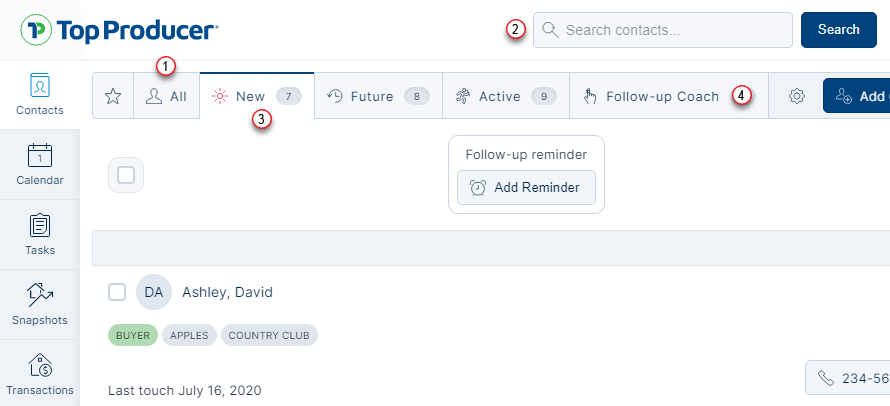
The new Contacts page has all you need in a single location. Browse contacts under the All tab (1), search from the search box in the top right (2), view contacts by sales pipeline status along the tab bar (3), or click Follow-up Coach for coaching (4).
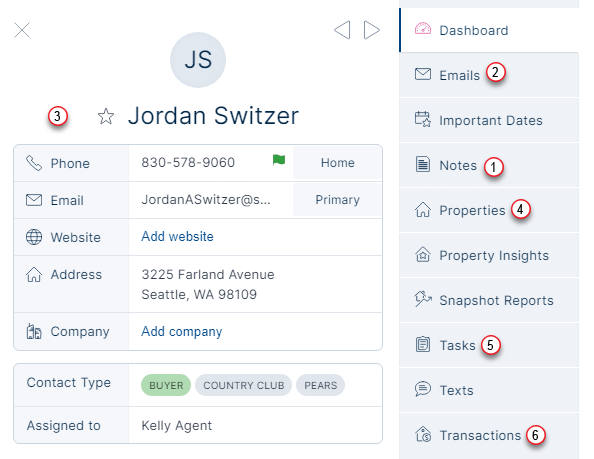
In the contact record you’ll find notes (1), emails (2), contact details (3), properties (4), tasks (5), and transactions (6).
Every time you’re on a contact record, paging functionality is immediately available. Click the arrow buttons, or use the left/right keys on your keyboard, to go back and forth through contact records on the current list.
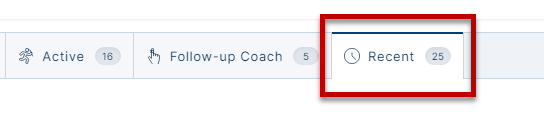
Recently viewed contacts can be found on the Contacts page under the Recent tab.
Finding Contacts
Search for contacts by name, address, phone number or contact type from any page in Top Producer® X CRM.
In Top Producer® 8i CRM...To find contacts, you would need do go to a separate search page, then choose between basic and advanced search, then fill out numerous fields and select multiple options to perform a search.

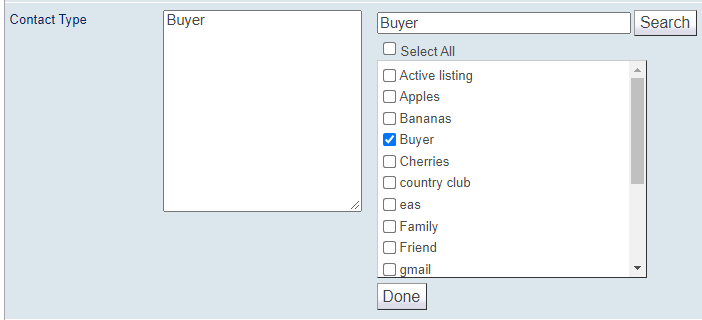
To search by contact type, you would need to scroll through a potentially very long list to select the contact type to search.
There’s a search box in the top right corner of every page. Enter a name, address, or phone number and click Search.

To search by contact type, enter “is:” into the search box, followed by the contact type, then click Search.

Categorizing Contacts
Categorize your contacts by contact type and status to find them easily and know where they are in your sales pipeline.
In Top Producer® 8i CRM...To add a contact type to a contact, you would edit the contact, click Select from/Modify List, check the type, and click Add.

To mass apply contact types, you would perform a search, then select the contacts, then choose to perform a mass update, then select the type to add, then update contacts.

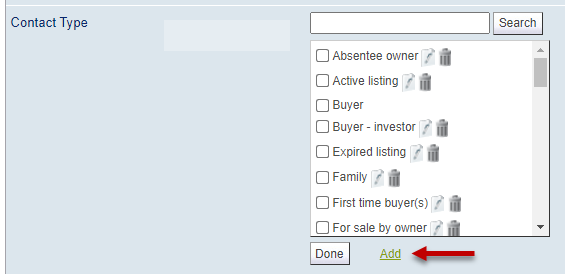
To add a new contact type, you had to open the contact type list, click the add button, scroll to the bottom of the list, enter the new type, and save.
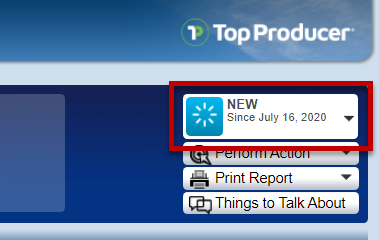
Changing a contact’s status involved opening the contact record, clicking the contact status dropdown in the top right, and selecting the new status.
To add a contact type to a contact, edit the contact, start typing the name of the contact type in the Contact types field and click the contact type from the list.

To mass apply contact types, go to almost any tab on the main Contacts page, select the desired contacts and click Add contact type. You can then select the contact type(s) you wish to add to the selected contacts.

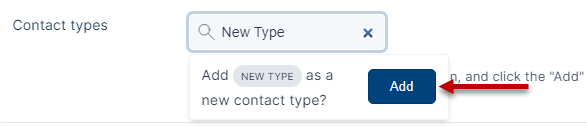
To add a new contact type, simply type the name of the new type in the Contact types field and click Add.
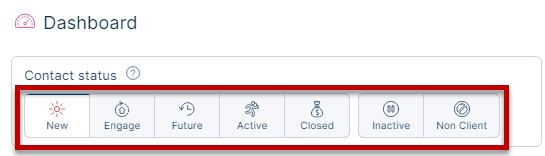
Change the contact’s status from the contact record by clicking the desired status. The status is automatically saved.
Communicating With Your Contacts
Send emails, texts, or Market Snapshot® reports to your contacts.
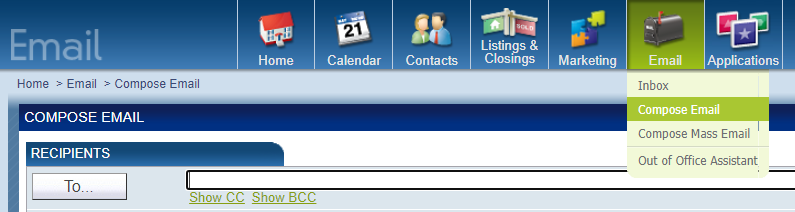
In Top Producer® 8i CRM...To compose an email, you would hover over Email in the main menu and select Compose Email.
To schedule an email to send automatically in the future, you would create an email activity.
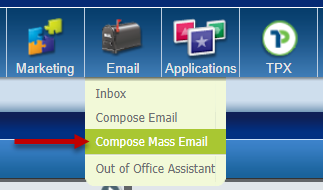
Send an email to a group of contacts by selecting Compose Mass Email.
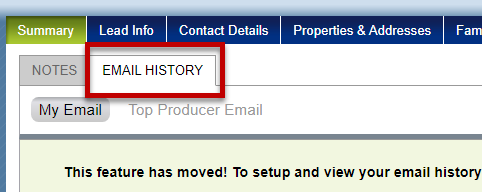
Email history could be found in the Summary tab under Email History.
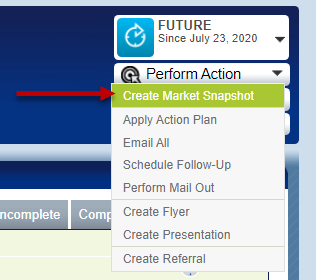
To send a Market Snapshot® report, you would go to the contact record Perform Action > Create Market Snapshot.
To email a contact, go to the Email tab of a contact record, and click Compose Email.

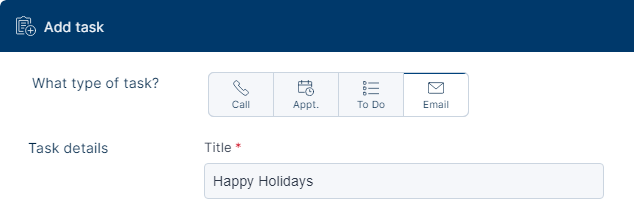
To schedule an email to send automatically in the future, you can create an email task.
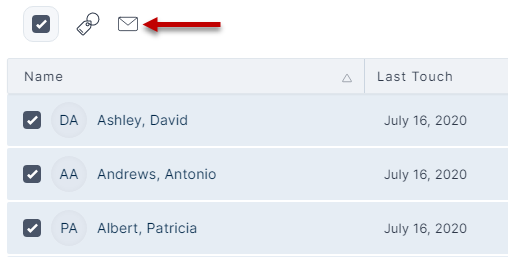
Send an email to a group of contacts by selecting them under Contacts and clicking Compose group email.
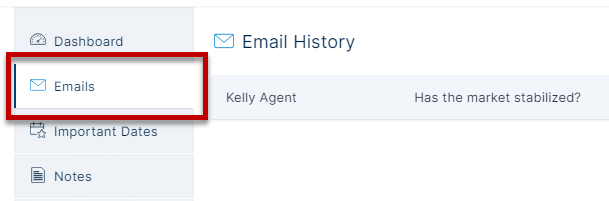
View your email history in the Emails tab of a contact record.
Note: All emails are sent through your integrated email account, resulting in improved delivery rates over Top Producer® 8i CRM and the ability to track opens.
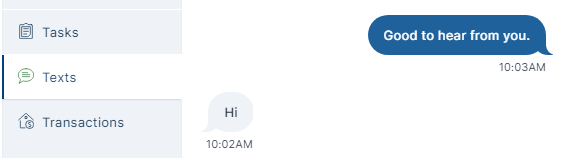
To text message a contact, go to the Text tab of a contact record, and click Send Text.

View your texting history in the Texts tab of a contact record.
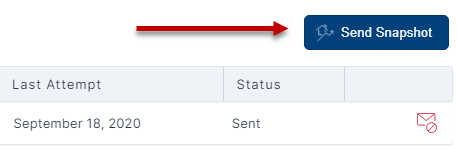
To send a Market Snapshot® report, go to the Snapshots tab of a contact record and click Send Snapshot.
Our streamlined and updated contact workflows let you spend less time with technology and more time with your clients.
Your Tasks
Using the new Task Plans in Top Producer® X CRM, you can create a customized plan in minutes. No more default plans or templates that have to be copied to modify. In X it just takes the flick of a switch to use an existing template and customize to how you do business.
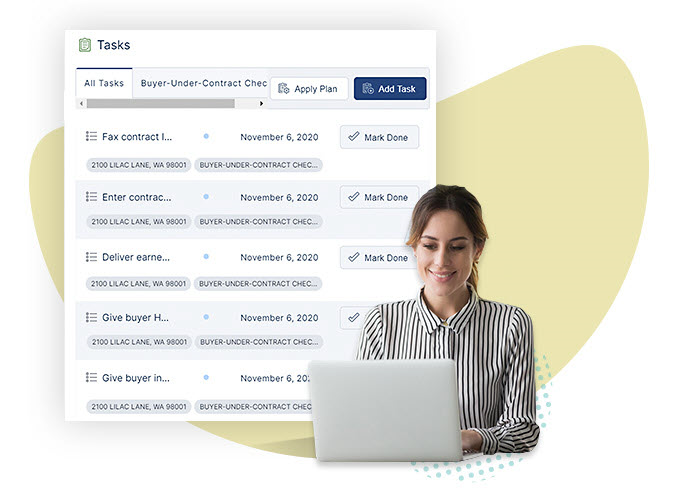
Activities in Top Producer® 8i CRM are now Tasks in Top Producer® X CRM. View your tasks, create new tasks, and set up task plans easier than ever before.
Viewing Tasks
View your task list, see task details, categorize your tasks by type and view your tasks on the calendar.
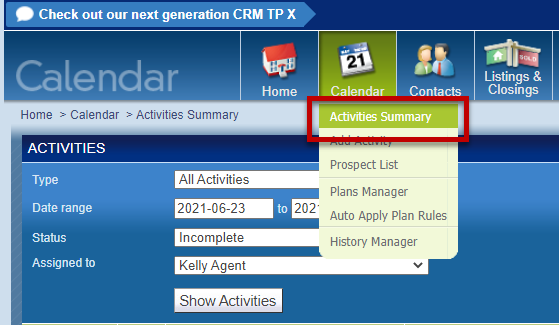
In Top Producer® 8i CRM...To view your activities in a list, you would go to the Activities Summary.
Viewing activity details, you could see the activity type (1), the description (2), the assigned to agent (3), the activity date (4), the activity priority (5), linked contacts (6), and activity notes (7).
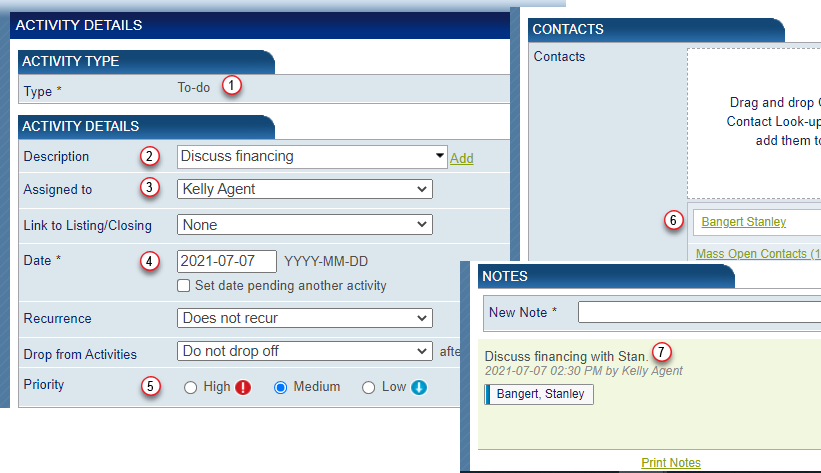
There were 8 activity types: To-do, call, appointment, letter, envelope, label, email, and postcard.

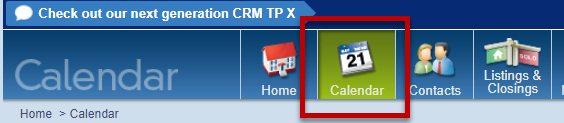
Your calendar was found under Calendar in the main menu.
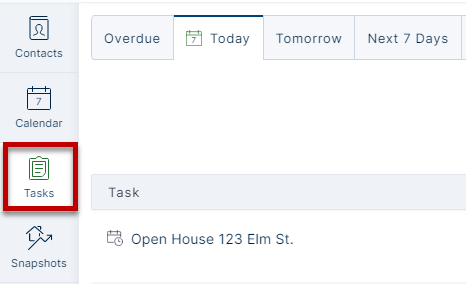
To view your tasks in a list, click Tasks in the main menu.
Viewing task details, you can see the task type (1), the description (2), the assigned to agent (3), the task date (4), the task priority (5), linked contacts (6), and activity notes (7).

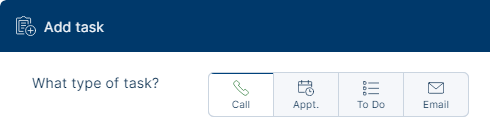
There are 4 task types: Call, appointment, to-do and email.
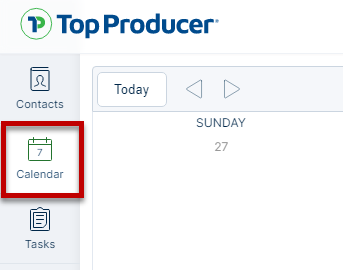
Your calendar is found under Calendar in the main menu.
Managing Tasks
Create new tasks and complete existing tasks.
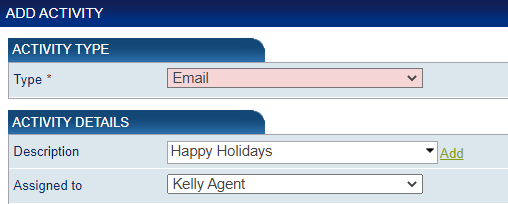
In Top Producer® 8i CRM...There were a few ways to add activities. One quick way was to go to Calendar > Add Activity.
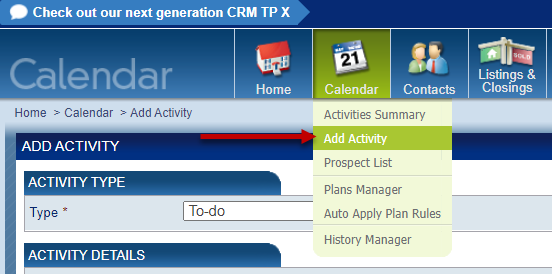
Another way was to open a contact record, go to the Activities tab and click Add Activity.

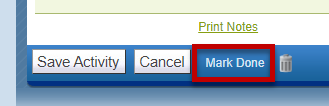
To complete a task, you would open the activity and click Mark Done.
There are many new ways to add tasks. One quick way is to click the Quick Compose button, then select Add Task.

Or in a contact record, go to Tasks tab and click Add Task.

To complete a task, open the task and click Mark Done.
Using Task Plans
Action plans in Top Producer® 8i CRM are now task plans in Top Producer® X CRM. Use our pre-made plans as a base for your own custom plans and apply plans to all your contacts so nothing slips through the cracks.
In Top Producer® 8i CRM...Action plans were created in the Plans Manager, and there were dozens of existing templates to use as a base for your custom plan.
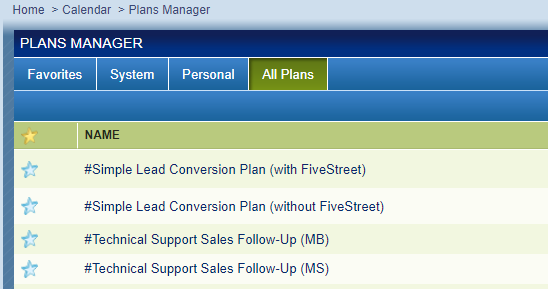
To create a custom action plan, you would copy one of the existing plans or start from scratch by clicking Create Plan.

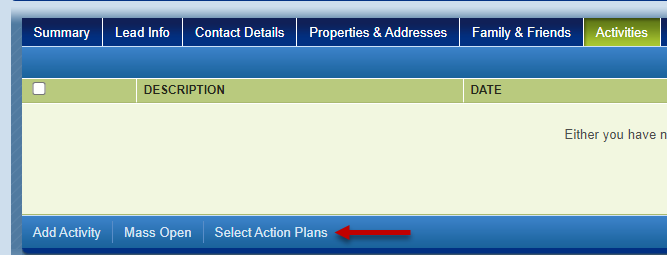
To apply an action plan, you would go to the contact record and click Select Action Plans under the Activities tab.
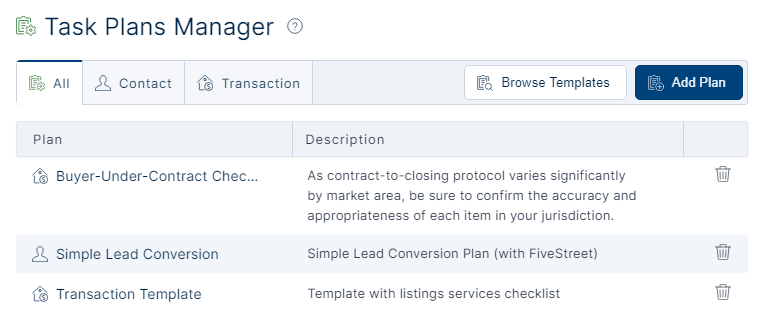
Task plans are created by going to Settings > Task Plans Manager. There are pre-made templates to get you started.
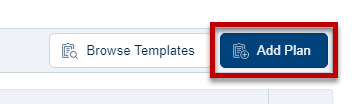
To create a plan from one of these templates, or to create a task plan from scratch, click Add Plan.
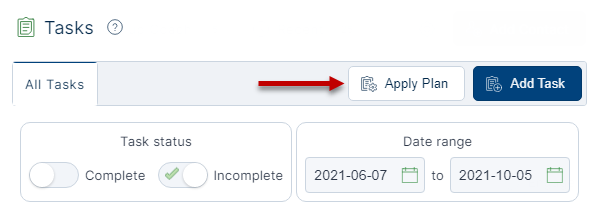
To apply a task plan, go to the contact record and click Apply Plan under the Tasks tab.
Your Transactions
The redesigned Transaction Management feature in Top Producer® X CRM helps simplify the complex steps involved in managing a real estate transaction. From dynamic workflows that automatically update as dates change or tasks complete, to a convenient timeline view that tracks important dates, it’s easier than ever to stay organized and on top of what needs to be done.
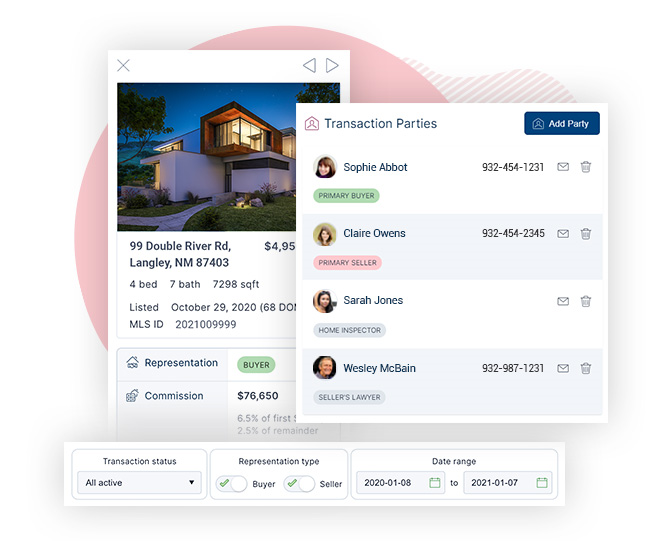
Listings/Closings in Top Producer® 8i CRM are now Transactions in Top Producer® X CRM. View transactions, manage transactions, and use transaction plans with ease.
Viewing Transactions
View your transaction lists, transaction details, and page through transaction records.
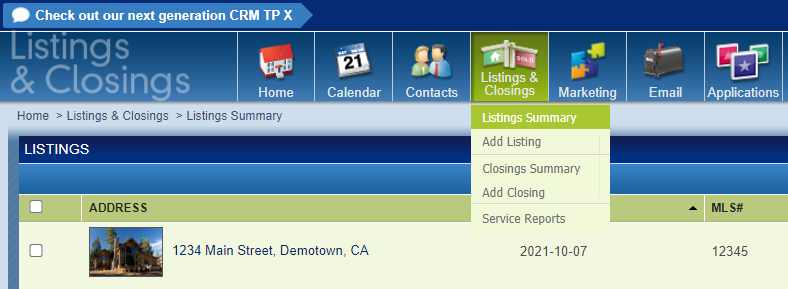
In Top Producer® 8i CRM...Listings and closings could be found in the listings summary and closings summary, as well as the Listings/Closings tab of the contact record.
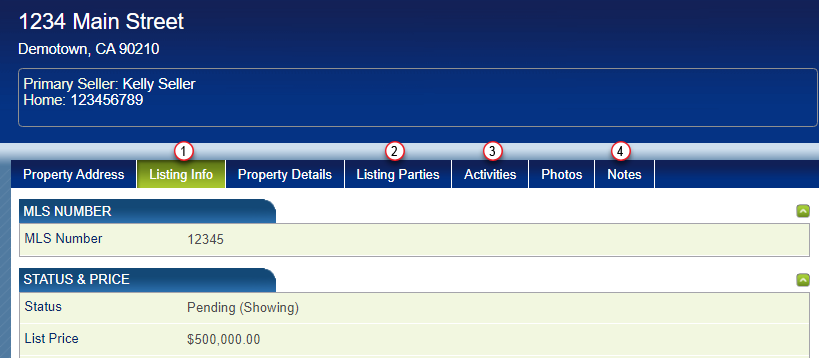
You had access to listing/closing details (1), listing/closing parties (2), activities (3) and notes (4).
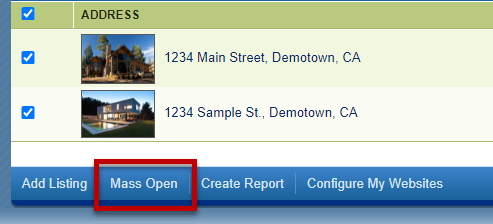
To page through listings/closings, you would need to select the desired listings/closings and click Mass Open.
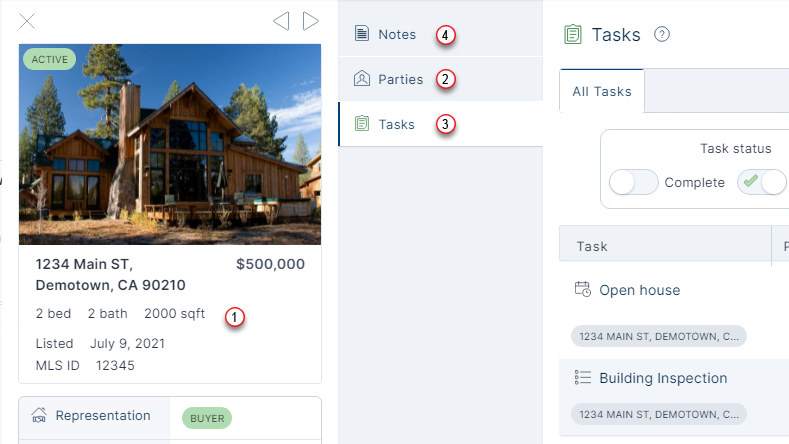
Transactions are found in the main Transactions page, as well as the Transactions tab of a contact record.
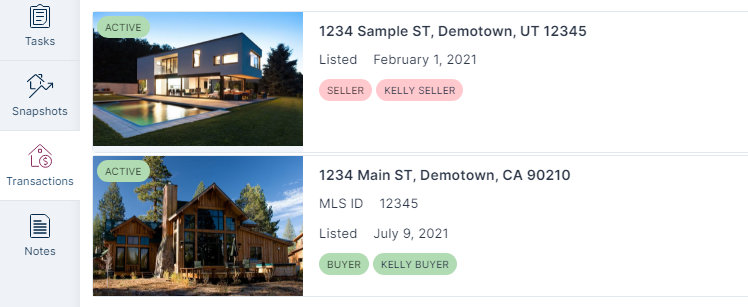
You have access to the transaction details (1), transaction parties (2), tasks (3) and notes (4).
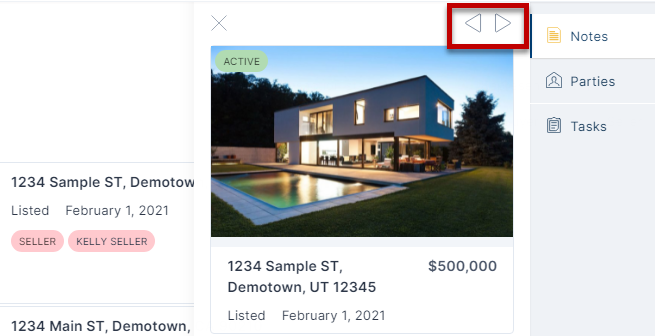
Every time you’re on a transaction record, paging functionality is immediately available to you. Click the arrow buttons, or the left/right keys on your keyboard, to go back and forth through transactions on the current list.
Managing Transactions
Create transactions and add notes, parties, and activities for easy transaction management.
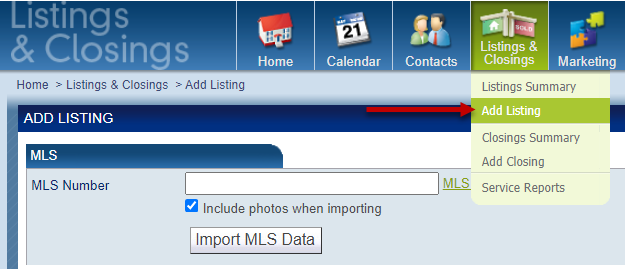
In Top Producer® 8i CRM...The quickest way to add a listing or closing was to go to Listings/Closings > Add Listing/Add Closing.
You would go to the Notes tab of the listing/closing to view notes or add a new note.

Under the listing/closing parties tab, you would view existing parties linked to the transaction or add new parties.

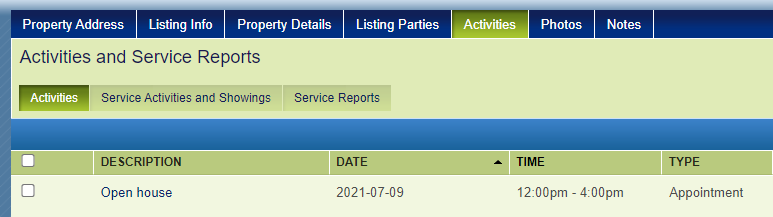
In the Activities tab you would find existing activities or create new activities.
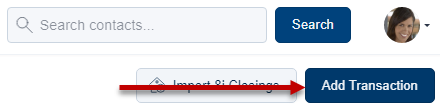
The quickest way to add a transaction is from the Transactions page by clicking Add Transaction.
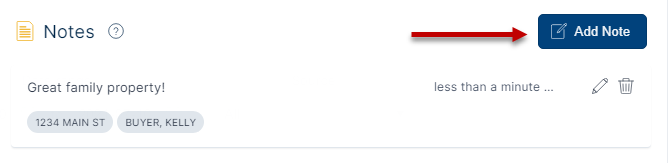
Go to the Notes tab to view notes and click Add Note to add a new note.
You go to the Parties tab of the transaction to view existing transaction parties or add new parties.

In the Tasks tab you can find existing tasks or create new tasks.

Using Transaction Plans
Create transaction task plans and apply transaction plans with all you need to do for each transaction.
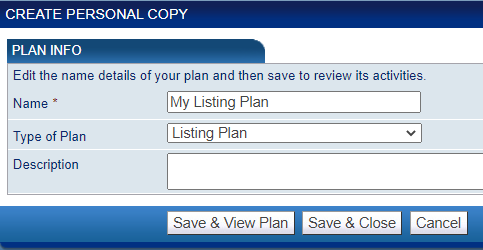
In Top Producer® 8i CRM...To create a listing or closing plan, you would create an action plan as normal (Activities > Plans Manager > Create Plan) then select Listing Plan or Closing Plan as the plan type.
To apply a listing or closing plan, you would go to the listing/closing record and click Select Action Plans under the Activities tab.

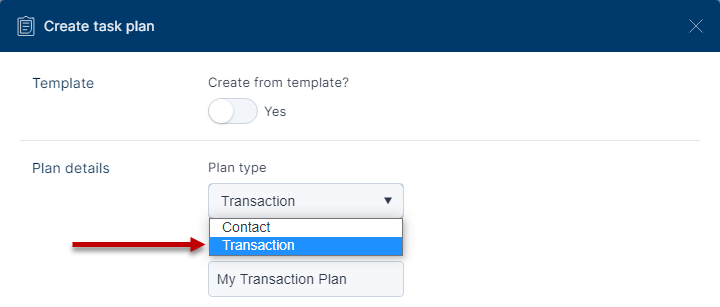
To create a transaction task plan, start by creating a task plan as normal (Settings > Task Plans Manager > Create Plan) then change the type from Contact to Transaction.
To apply a task plan, go to the transaction record and click Apply Plan under the Tasks tab.
Upgrade to Top Producer® X CRM Today!
Upgrade to Top Producer® X CRM today and find the features you’ve grown to love, in an elegant, modern new interface. What’s more, upgrading to Top Producer® X CRM will give you access to all our latest tools and innovations, with more fantastic features coming soon!